My connection to Halifax.Com seems slow or is not working,
what can I do to fix it (Windows 95)?
Solution:
This problem can have many causes ranging from noisy phone lines to not having the correct
modem initialization string. If you are using Windows 95, we have included some things for
you to check on your system. Please read this page for more information.
Windows 95There is a parameter in the TCP/IP configuration called the Maximum
Transmission Unit, or MTU. This value controls the size of the data packets that are
use to transfer data with the TCP/IP protocol. We recommend that you modify your MTU to be
576. You can download a program called EasyMTU from here that
can be used to set your MTU setting. The default value of 1500 is
not the most efficient for modem connections.
Use the following procedure to set your modem's serial port speed to the most efficient
value.
- Select "My Computer".
- Select "Control Panel".
- Select "Modems".
You should see the following display. If your modem is not a
SupraExpress, then you will see a different name for your modem in the picture below.
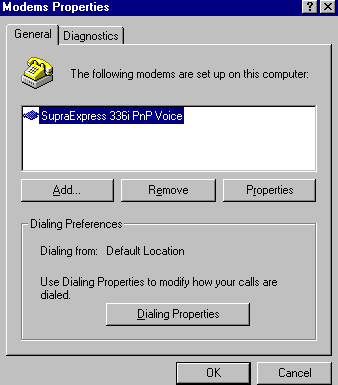
- Select your modem and then Properties, and you will see the following
display.
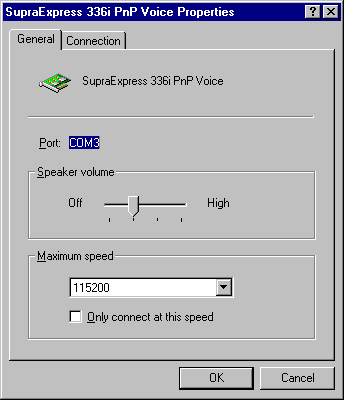
- Set your Maximum speed according to the following table:
| Computer |
Mhz |
Modem Speed |
Maximum Speed |
| 386 |
25 |
14400 bps |
19200 |
| 386 |
25 |
28800 bps |
38400 |
| 486 or Pentium |
>50 Mhz |
14400 bps |
38400 |
| 486 or Pentium |
>50 Mhz |
28800 bps |
57600 |
| 486-Pentium II |
>50Mhz |
56000 bps |
115200 (or 57600) |
If your modem an external model, it is very important that your serial port have a
16550 UART or better chip . Most of the newer computers have these fast 16550 UARTs,
so it probably will not be a problem if your computer is new. Do not
check the "Only connect at this speed." box.
- Next, select the "Connection" tab. You will see the following display.
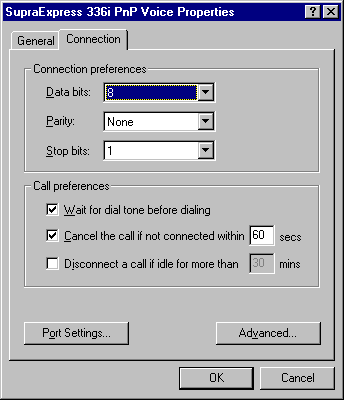
Verify that your settings are as shown.
- Then, click the "Advanced..." button and make sure that your settings are as
shown below. In some cases, you may be unable to select the "Use error control"
or "Compress data" boxes.
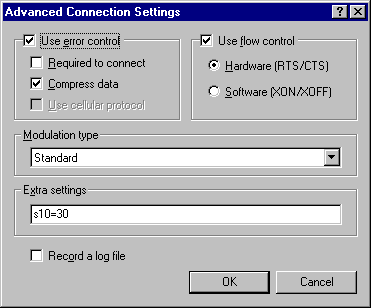
Once you have verified these settings, you can select OK three times to take you back to
control panel.
- Try your connection to Halifax.Com again and verify that your connection stays up. If it
doesn't, please see the following web sites for more information.
The following sites on the web are excellent references for solving this type of problem:
Curt's High Speed Modem Page
AL's Winsock Tuning
FAQ
Navas 28800 Modem FAQ
Return to main page
This site was last updated on April 11, 1998 by 
|
